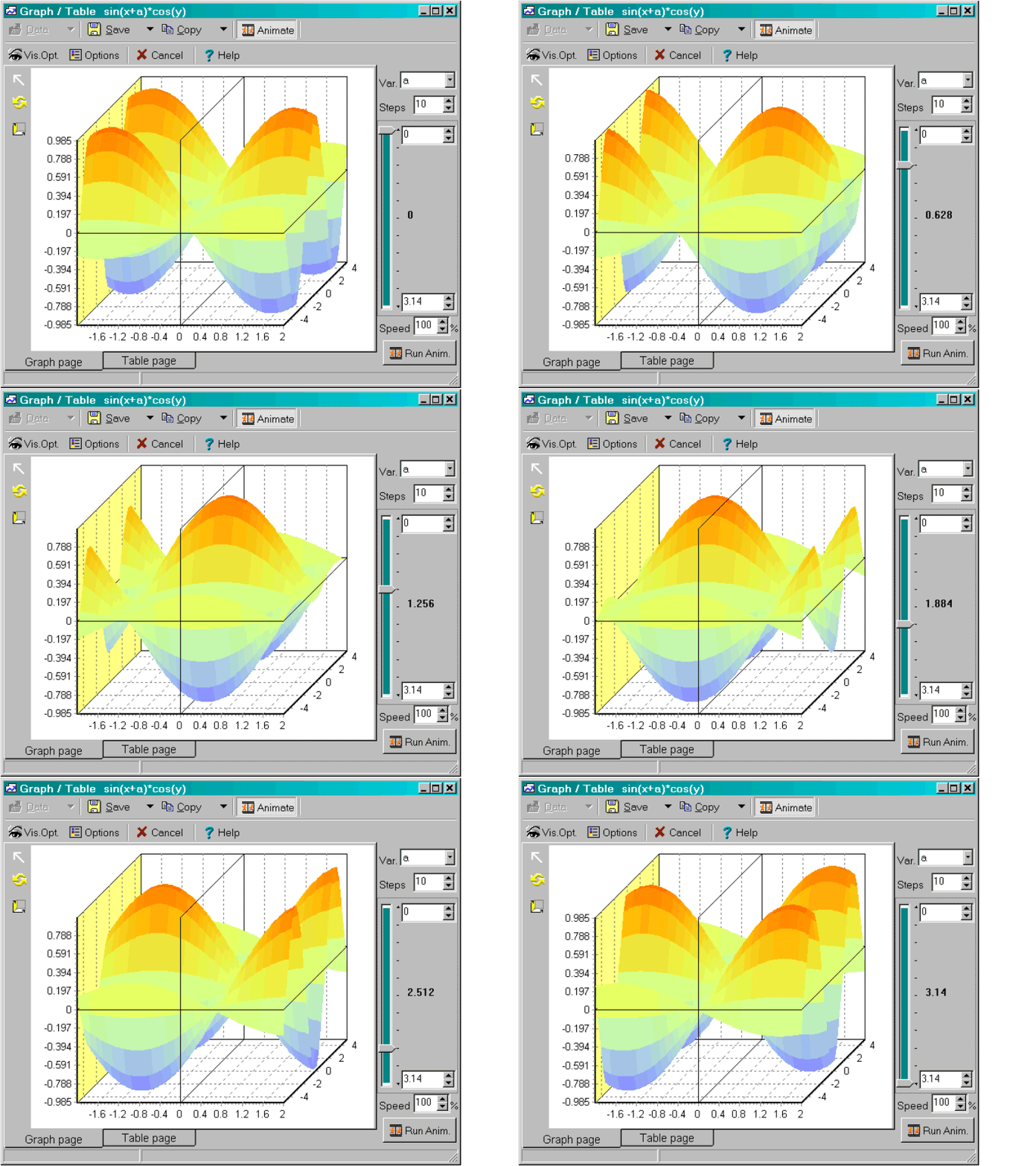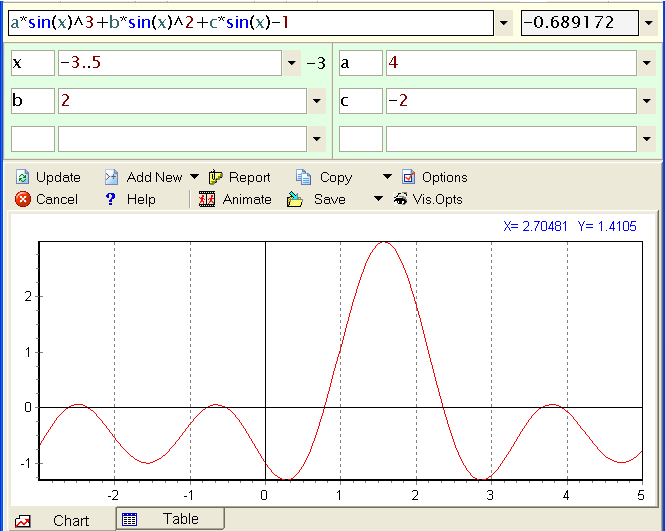
There is no simpler way to draw a graph of a function. Just write your expression, set a range for your horizontal axis variable and press chart button.
Explicit presentation
Once you have your chart, you can investigate:
- you can see the exact mouse cursor position in the chart panel on the right
upper corner
- turn to page table to see the values of the chart
- zoom interesting piece of your chart by dragging with left mouse button from
left/top to right/bottom, the opposite drag will un-zoom.
- after you zoom you can move the whole chart by dragging with the right mouse
button.
If you are interested in understanding how the chart of your function will change with a variation of one other variable, you can go two ways - animate your chart (Animate button) or go 3D.
Parametric presentation
For using parametric presentation you have to switch to Parametric mode in Modes menu first.
For 2D parametric curves you must have expressions for X_ and Y_ and one range variable.
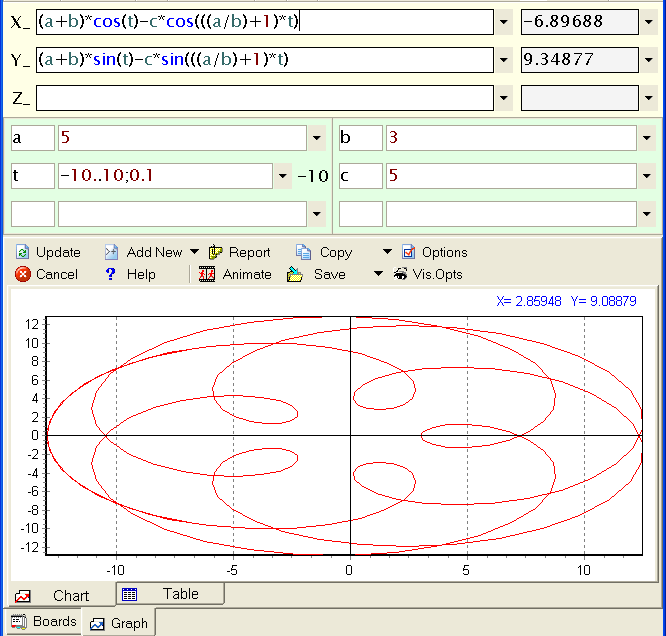
...and one more curve - Lissajous . You can find a collection of curves in Projects directory.